



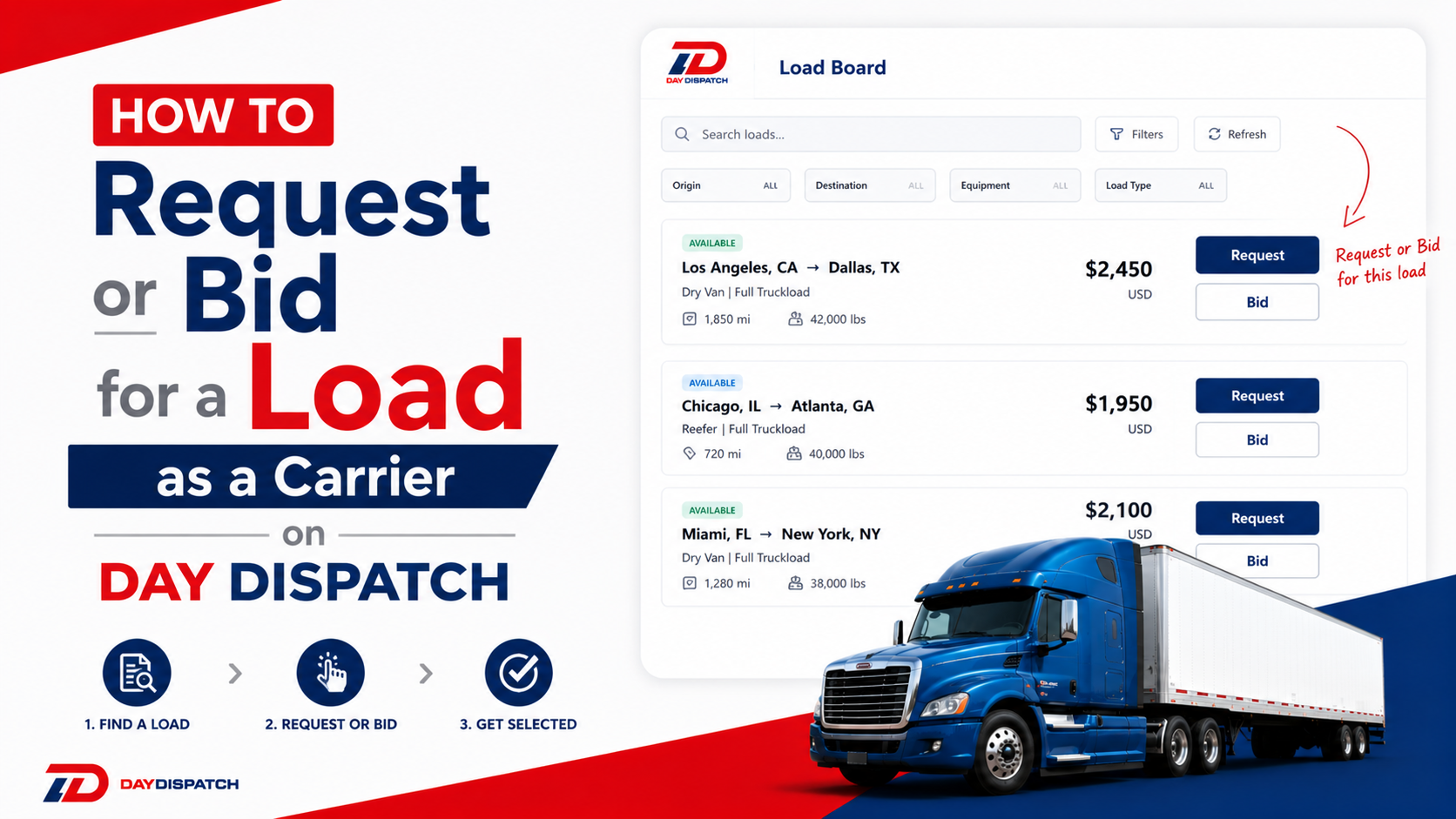
How to Request or Bid for a Load as a Carrier on Day Dispatch
Learn how carriers can request or place bids on available loads in Day Dispatch, review load requirements, submit competitive offers, and increase their chances of getting assigned shipments quickly.
Introduction
As a carrier on Day Dispatch, you don't have to wait for a broker to come to you. The platform gives you the ability to actively browse all available loads on the loadboard and either request a load at the broker's listed price or place your own bid with a custom price. This is the more common way carriers pick up work on the platform — by going out, finding the right load, and putting their hand up for it.
This guide walks you through the entire process from the moment you log in to the point where your request or bid is submitted and waiting for broker approval.
Step 1: Log In to Your Carrier Account
Go to the Day Dispatch website and log in using your registered carrier email and password. Once you're in, you'll land on your main carrier dashboard where you can see an overview of your current activity on the platform.
Step 2: Find Available Loads
There are two ways to get to the available loads on the platform and you can use whichever feels more convenient.
Option 1: Through the Navigation Bar: Look at the top navigation bar and find the Search Shipment dropdown. Click on it and select Search Load from the options. This will take you directly to the loadboard where all currently available loads are listed.

Option 2: Through the Dashboard Icon: On your carrier dashboard, you'll notice an Available Loads icon. This icon also displays the total number of loads currently available on the platform in real time, so you can see at a glance how much is out there before you even click. Click on this icon and you'll be taken to the same loadboard view.

Step 3: Browse and Find the Load You Want
Once you're on the Search Load page, you'll see all the available listings laid out in front of you. Each listing shows you the key details; route, load type, vehicle or freight information, payment, pickup and delivery dates, and the broker or company posting the load.
Take your time browsing through the listings. You can use the filter dropdown, at the top of the page to narrow things down if you're looking for something specific, a particular route, load type, or price range. Browse until you find a load that works for you.
Step 4: Click "Bid/Request Load"
Once you've found a listing you're interested in, look for the action button labeled Bid/Request Load on that listing and click it.

A popup will immediately appear giving you two options to choose from. This is where you decide how you want to approach the load.
Step 5: Choose How You Want the Load
The popup presents you with two distinct options:
Request for Load: Choose this if you're happy with the price the broker or shipper has already listed. This is a straightforward request that says you're willing to take the job at the stated price, no negotiation needed. It's the quicker and simpler option.

Bid for Load: Choose this if you want to propose your own price for the job. This is useful when you feel the listed price doesn't fully reflect the route, load type, or your current availability, and you want to come in with a custom offer. The broker will then review your bid alongside any others.

Click on whichever option applies to your situation. Both options open a form in the same popup the only real difference between them is that Bid for Load includes an additional field where you enter your proposed price.
Step 6: Fill In the Request or Bid Form
Whether you chose Request for Load or Bid for Load, you'll now see a form inside the popup that needs to be filled in.

Here's what each field means:
- Date to Pickup: This is a dropdown where you define how firm your pickup date is. Select from the following options:
- Estimated: The date is an approximation and may shift slightly
- Exactly: The pickup must happen on precisely the date you select
- No Earlier Than: The pickup cannot happen before the date you choose
- No Later Than: The pickup must happen by the date you choose at the latest
- Pickup Date: After selecting your Date to Pickup type from the dropdown, use the date picker to enter the actual pickup date.
- Date to DeliveryThe same dropdown applies here. Select how firm your delivery date is using the same four options; Estimated, Exactly, No Earlier Than, or No Later Than.
- Delivery Date: After selecting your Date to Delivery type, enter the actual delivery date using the date picker.
- Bid Price (only for Bid for Load):If you selected Bid for Load, you'll see an additional field here where you enter the price you're proposing for this job. Enter your amount carefully — this is what the broker will see when reviewing your submission.
Step 7: Agree to the Terms and Conditions
At the bottom of the form, you'll find a checkbox with the following text:
"I acknowledge and agree that by accepting this request, I enter into a legal contract with Day Dispatch for the transportation of vehicle(s), with no liability on either party beyond this agreement. Any changes made to the dispatch sheet post-acceptance, unless approved by Day Dispatch, may not be binding on the customer or company."
Read this carefully. By checking this box you are formally acknowledging that submitting this request or bid enters you into a legal transport agreement with Day Dispatch. Make sure your dates are correct and your bid price is accurate before ticking this box, because this is your commitment to the terms of the job.
Once you've read and understood the statement, tick the checkbox to confirm your agreement.
Step 8: Click "Submit Request"
With all the fields filled in and the checkbox ticked, click the Submit Request button at the bottom of the form.
Your request or bid is now officially submitted. The popup will close and the load listing will move from the available loadboard to your Waiting for Approval page in your carrier tabs. This means your submission has been sent to the broker and is now in their hands.
What Happens Next
Once your request or bid is on the Waiting for Approval page, the broker will review it on their end. They can see your submitted dates, your bid price if you placed one, and any comments associated with your request.
If the broker approves your request, the load will move forward and you'll receive it as an assigned job at which point it will appear on your Dispatch page and the full order lifecycle begins. If the broker does not approve or selects a different carrier, the listing will be updated accordingly on your end.
In the meantime, you can monitor the status of your submission directly from your Waiting for Approval page.
That's everything a carrier needs to know about requesting or bidding for a load on Day Dispatch.