



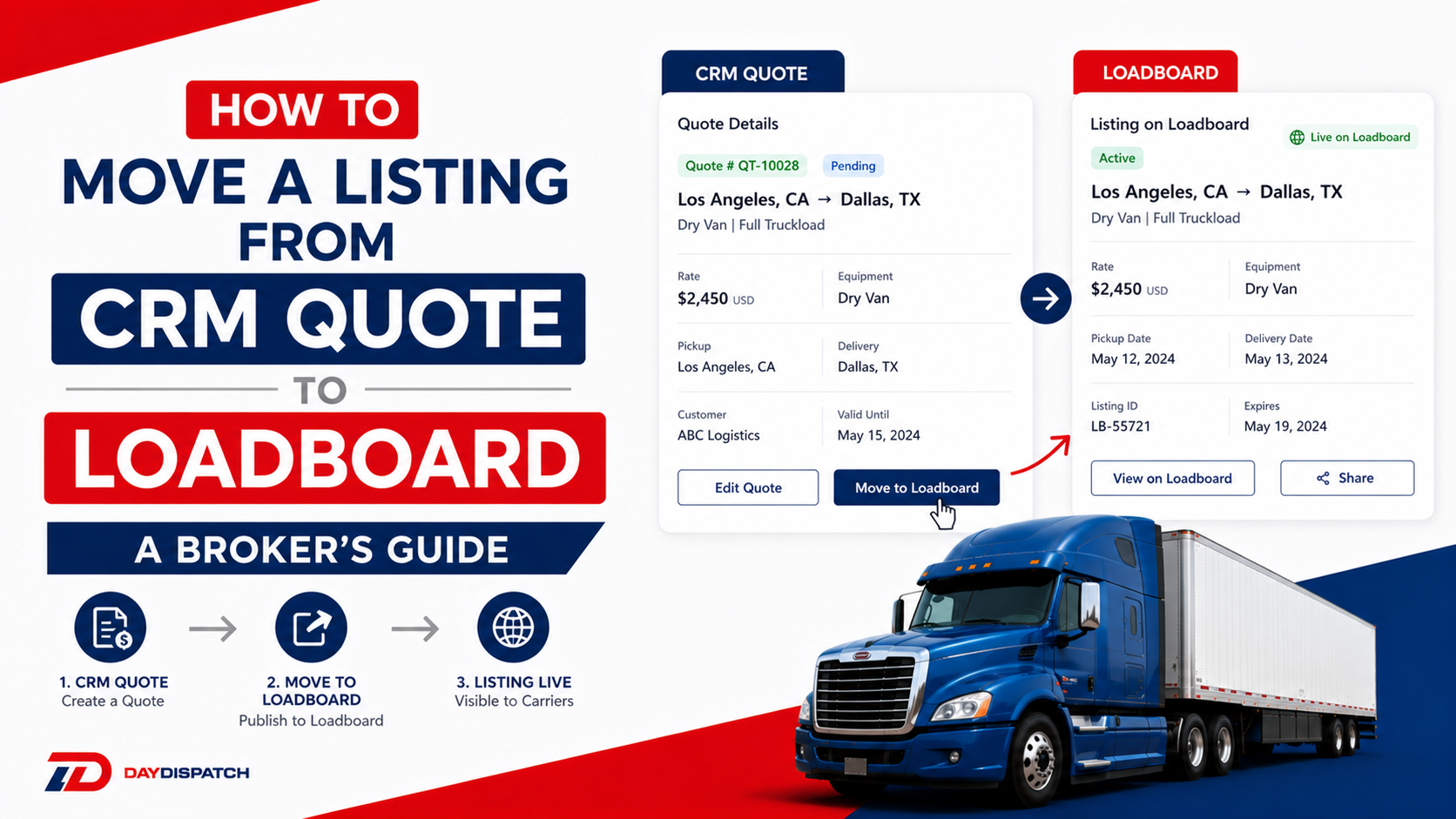
How to Move a Listing from CRM Quote to Loadboard — A Broker's Guide
Learn how to seamlessly move a listing from CRM Quote to the Loadboard in DayDispatch.
Introduction
Creating a quote in Day Dispatch CRM is just the first step. Once your quote is ready, the next milestone is getting it live on the loadboard so carriers can actually see it and start bidding on it. But before it reaches the loadboard, it goes through a structured flow inside the CRM; from your Quotes section, into the Book Order folder, and then finally out to the live loadboard.
This guide walks you through that entire journey, step by step, including how to get back into the CRM if you're starting fresh, what happens at each stage, and what actions are available to you along the way.
Step 1: Log In and Navigate to the CRM
Head to the Day Dispatch website and log in with your registered broker email and password. Once you're on your main broker dashboard, look for the CRM option in the navigation bar and click on it.

This takes you into the CRM dashboard. On the left side you'll see the sidebar with all your navigation options. In the center is the main content area where your data and forms load. Keep this layout in mind as you move through the steps below, most of what you'll be doing lives inside this sidebar.

Step 2: Go to Your Quotes and Find the Quote You Want to Move
In the left CRM sidebar, click on New Quotes, or any other Custom Folder you have created. This opens up your full list of existing quotes. Find the quote you want to move to the loadboard. If you have a large number of quotes, use the global search at the top of the list to locate it quickly.

Once you find it, open it up and confirm that all the details; vehicle information, origin and destination, dates, pricing, and contract are correctly filled in. Review everything before the quote moves forward in the flow. Any missing or incorrect details are much easier to fix at this stage than after the listing is live.
Step 3: Click "Book Order"
Once you're satisfied that the quote is complete and accurate, look for the action button labeled Book Order associated with that quote. Click on it.

Once you click on the Book Order , the quote is immediately moved out of your general Quotes section and goes into the Book Order folder inside your CRM dashboard. Think of the Book Order folder as a staging area, your quote is committed but not yet public. It's confirmed on your end, but carriers haven't seen it yet.
Step 4: Navigate to the Book Order Folder
After clicking Book Order, you'll be redirected to the Book Order listings inside your CRM. This is where all quotes that have been booked but not yet pushed to the loadboard are held.
Here you'll be able to see your listing along with a set of action options available to you at this stage. It's worth understanding what each of these actions does before you proceed.

Step 5: Review the Available Actions in Book Order
Inside the Book Order folder, each listing has the following actions available:

Cancel Order:
If for any reason you decide not to proceed with this shipment, clicking Cancel Order will remove the listing from the Book Order folder and move it into the Cancelled folder inside your CRM dashboard. This does not affect the loadboard since the listing hasn't gone public yet. Use this if the customer cancels or the shipment details change significantly.
Modify Quote:
If you need to make any last-minute changes to the quote before it goes live — such as adjusting the price, updating the pickup date, or fixing an address — click Modify to edit the listing. Always double-check your changes before saving.
Generate Invoice:
You can generate an invoice for this order directly from the Book Order folder without waiting for the job to be completed. Click Generate Invoice and the system will create an invoice based on the payment details in your quote. Make sure all payment amounts were properly filled in when the quote was created, if any amounts were left at zero, the invoice will reflect that.
Move to Loadboard:
This is the final action that takes your listing public. Once clicked, the listing leaves the CRM entirely and goes live on the Day Dispatch loadboard where all carriers can see it, review the details, and start placing bids.
Step 6: Click "Move to Loadboard"
When you're ready to go live, click the Move to Loadboard button on your listing inside the Book Order folder.

At this point the listing is published to the active loadboard. It is now fully visible to all carriers on the platform. From this moment on, carriers can view the full shipment details; route, vehicle information, pricing, dates, and your listed requirements — and begin submitting their bids and requests.

Your listing will simultaneously appear in your My Listings tab under the Broker Index on the loadboard side, where you can manage all incoming activity.
What Happens After the Listing Goes Live
Once your listing is on the loadboard, the order lifecycle begins. Here's a quick overview of what to expect next:
Carriers who are interested will submit bids or requests, which you'll see under the Bid/Request tab in your Broker Index. From there, you can review bids, use Carrier Outreach to directly contact specific carriers, or use the Lane Carrier function if you have preferred carriers for that route.
Once you select a carrier and approve the request, the listing moves to Waiting Approval, and then progresses through Dispatch, Pickup, and finally Delivered when the job is complete.
If at any point before a carrier is assigned you need to make changes to the listing, you can use the Modify Listing option from the My Listings tab on the loadboard side.
That's the complete process for moving a listing from your CRM quote all the way to the live loadboard.