



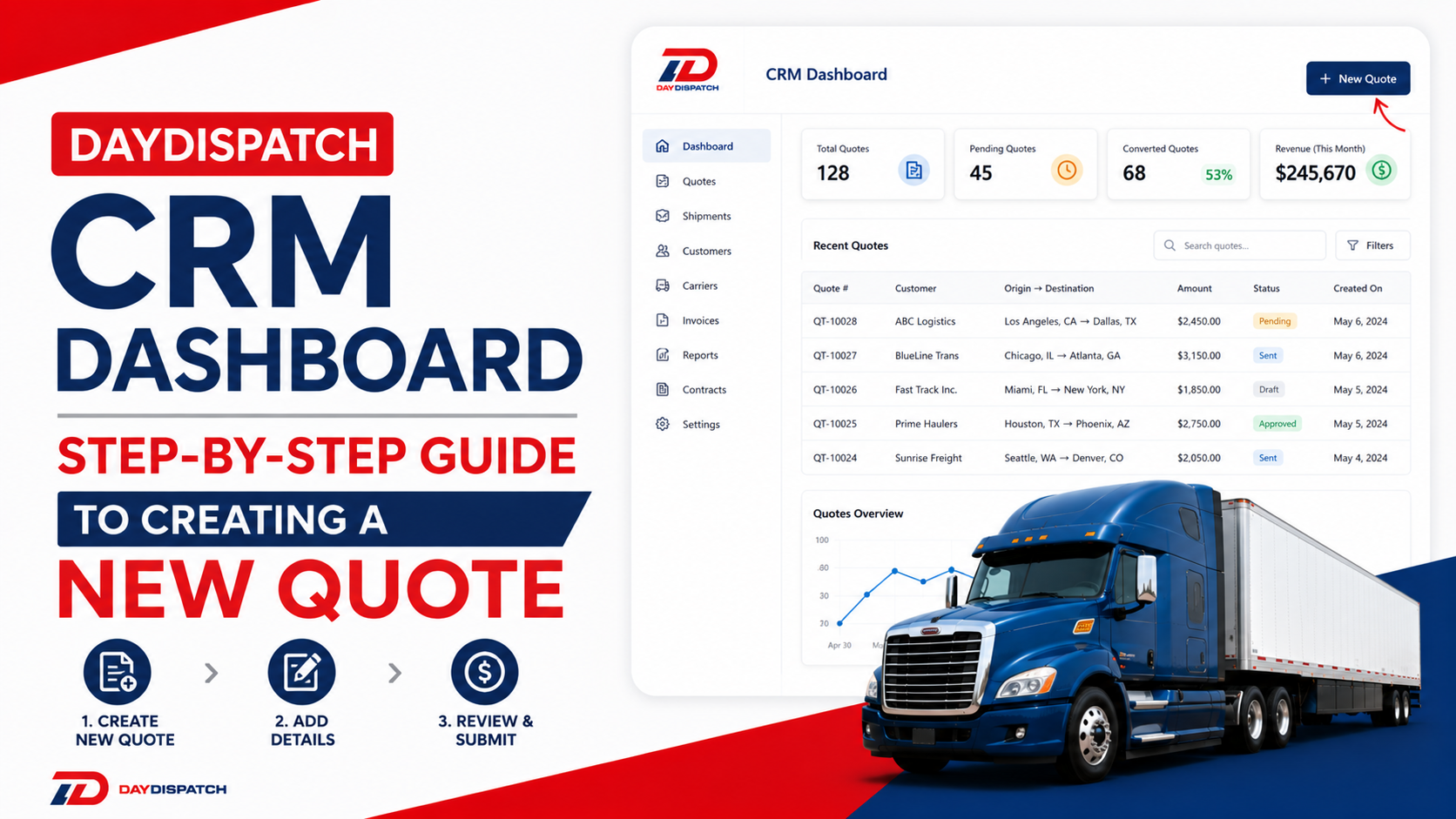
DayDispatch CRM Dashboard — Step-by-Step Guide to Creating a New Quote
Learn how to create a new quote in the DayDispatch CRM Dashboard with this step-by-step guide. This guide walks brokers through entering shipment details, selecting carriers, setting pricing, and generating accurate quotes quickly and efficiently within the system.
Introduction
The DayDispatch CRM Dashboard is an additional feature that helps brokers manage shipment opportunities before turning them into confirmed orders. Instead of immediately posting a listing on the loadboard, brokers can first create a quote inside the CRM when they are still unsure or negotiating with a customer. This allows every shipment to be properly structured, tracked, and managed in one place before it goes live.
Accessing the CRM Dashboard
To begin, the broker logs into the DayDispatch system using their registered credentials and opens the CRM section from the main dashboard. The CRM acts as a central workspace where all quotes, customers, and shipment-related activities are managed. Inside the CRM, the broker navigates to the CRM dashboard

Creating a New Quote
Inside the Quotes section, the broker clicks on the “Create New Quote” option. This opens a structured form that follows the same layout as the loadboard listing system, ensuring the workflow feels familiar and easy to use.

In this form, the broker enters customer details such as name, phone number, and email address, followed by shipment details including pickup location, delivery location, and vehicle, freight, or heavy equipment information depending on the load type. Pricing details are also added to complete the quote structure.
Once all required information is filled in, the broker saves the quote. At this stage, the quote remains private inside the CRM and is not published to the loadboard.
Action Buttons on New Quote Section
After creating a new quote, the broker has several action options available to manage and progress the quote. These include “Book Order,” which is used to convert the quote into a confirmed shipment order, and “Mail Order Form,” which generates and sends the official order confirmation document to the customer through email.
The broker can also use “Modify Quote” to edit or update any shipment or pricing details if changes are required. Additionally, “Quote History” allows the broker to track all updates, notes, and communication history related to that quote, ensuring full visibility of the deal progression.

Saving and Managing the Quote
Once saved, the quote is stored inside the CRM system and can be accessed anytime from the Quotes dashboard. It does not go live on the loadboard until it is converted into an order. From here, the broker can continue managing the quote, updating details, or moving it through different stages of the workflow.
Organizing Quotes into Workflow Stages
After creation, quotes can be organized into different workflow stages such as “Follow Up,” “Interested,” or similar categories depending on the status of the customer conversation. This helps brokers keep their pipeline organized and ensures no opportunity is missed. (A separate guide will explain how to create and manage these custom folders.)
Converting Quote into an Order
When the broker is ready to proceed with the shipment, they can click on “Book Order.” This action converts the quote into a confirmed order and moves it from the CRM stage into the operational workflow where dispatch and carrier assignment begin.
Action Buttons on Book Order Section
Once a quote is converted into a booked order, the broker gains access to additional operational controls. “Move To Loadboard” allows the broker to publish or reintroduce the shipment into the loadboard system if needed. “Cancel Order” is used to stop or remove the order from active processing.
“Order Form” remains disabled until all required order conditions are completed. “Modify Quote” allows changes to shipment or pricing details even after conversion, ensuring flexibility. “Generate Invoice” is used to create billing documents once the order is confirmed and ready for financial processing.

Conclusion
In simple terms, the CRM Dashboard works as a structured bridge between a potential shipment and a confirmed order. It allows brokers to create quotes, manage them through different stages, update details as communication progresses, and finally convert them into active shipments. This system ensures better organization, smoother workflow, and complete control over every shipment from start to finish.